What is WNCd role within Cisco WLC C9800 and APs in Local mode?
The WNCd (Wireless Network Control Deamon) is a main component of the C9800 Wireless LAN Controller. The C9800 is multi-process software architecture with each of the WNCd processes being single-threated. This improves overall performance, scalability, and data separation with no single fault domain. The new WLC C9800 platform is based on new IOS-XE architecture which has a different structure from its predecessor AireOS that was a single thread process for all the APs, clients and WLC functions. The AireOS was used in the previous Cisco WLC generations such as 8540, 7510, 5520, 5508, 4400, 3504, and 2504.
All the access points are distributed between available WNCd instances in the C9800 architecture based on their site tags which allow them to be load balanced. Therefore, each WNCd process is responsible for its assigned APs and their associated client sessions, and each WLC C9800 platform has a different number of these processes.
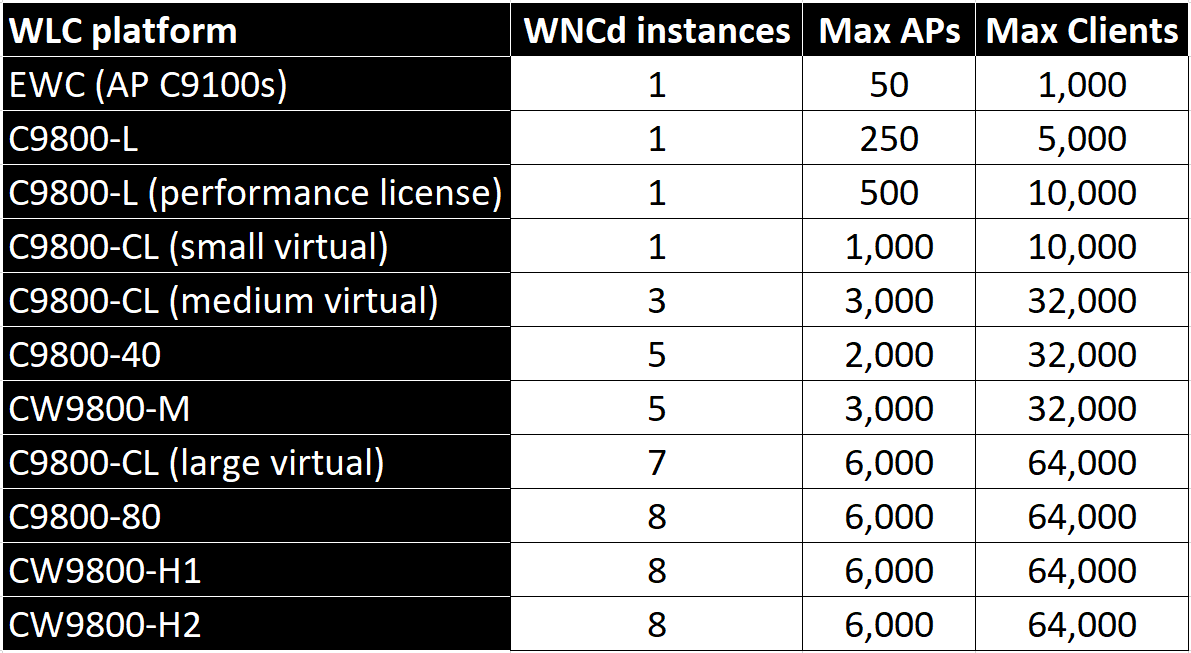 Number of WNCd instances, supported APs and clients per a Cisco IOS-XE platform.
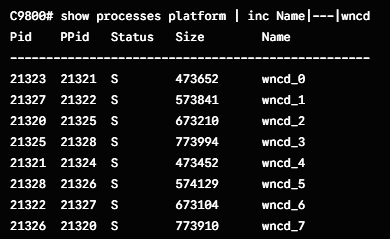 To check the number of the WNCd in you platform use the CLI command:
"show processes platform | inc Name|---|wncd"
To effectively utilize this platform make sure to use all the processes equally between APs. Therefore, when APs join the WLC they are distributed between available WNCd processes. This distribution is based as mentioned before on the site tags. All the APs associated with the same specific site tag are managed by the same WNCd process.
You can monitor CPU load and ensure that system processes operate under the recommended load which is less than 70% for 5 minutes. Any occasional spikes between 80-90% are acceptable.
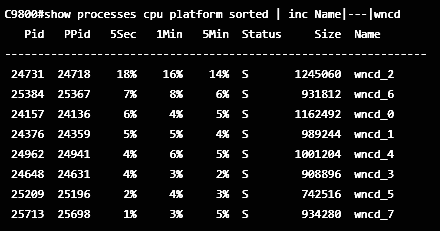 We can monitor the WNCd load in the CLI with this command:
"show processes cpu platform sorted | inc Name|---|wncd"
If we see the CPU consistently running above 70% or often spiking between 80-90%, it indicates we should optimize the site tag design.
The Local mode APs use a custom site tag instead of the default-site-tag. Assign all the APs to the same site tag when they are located in the same roaming area (same logical group of APs with same RF domain and SSID). As a result, most roaming will happen in the same WNCd process.
If you use the default-site-tag, the APs would be distributed by the round robin method increasing the probabilities of APs being assigned to different WNCd process and optimized roaming (802.11k/v) would be lost even though the roaming support with 802.11r and OKC would work between different site tags. However, since IOS-XE version 17.7 the roaming is fully supported across site tags including 802.11k/v.
Cisco recommends default maximum 500 APs per site tag. In high-density deployments it is recommended to distribute all the APs between all the WNCd processes evenly for load balance even when there are more site tags than processes. Create an even number of site tags and evenly distribute APs among these site tags to avoid overloading. If you have several buildings apart then roaming wouldn't be an issue since there would be a Wi-Fi coverage gap between the buildings anyway. Consequently, configure one site tag per building to have the APs in the same roaming area.
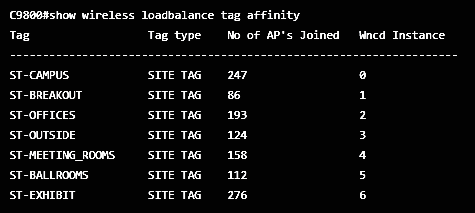 To verify how many APs are in each site tag use the CLI command:
"show wireless loadbalance tag affinity"
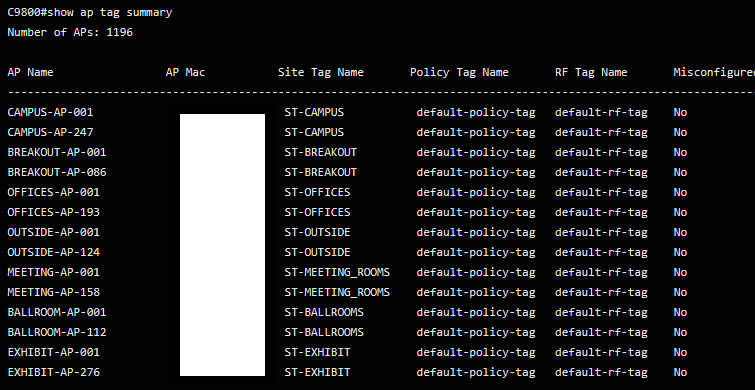 To verify which AP is assigned to which site tag use the CLI command:
"show ap tag summary"
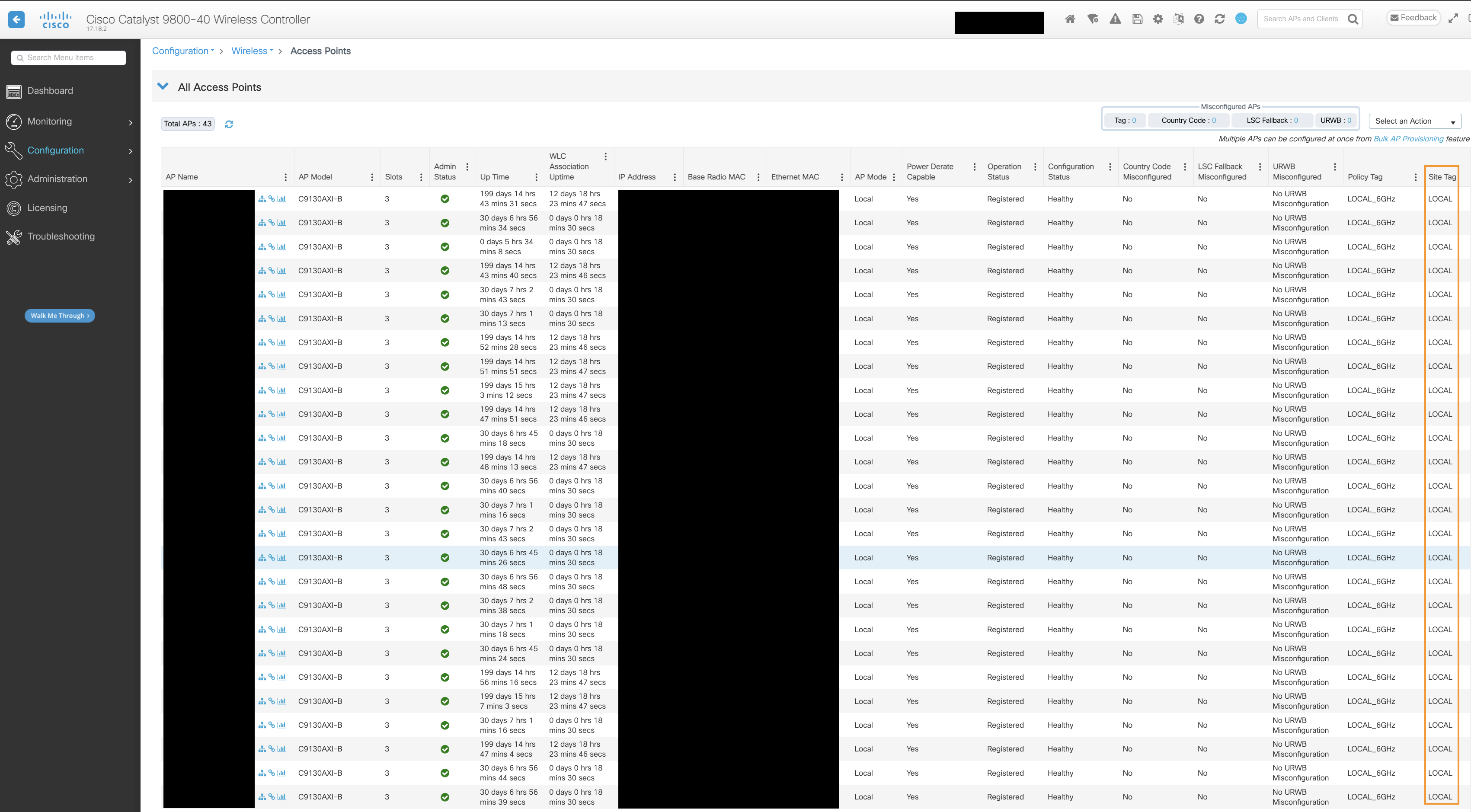 To verify which APs are in which specific site tag, we use the CLI command:
"show wireless loadbalance ap affinity wncd #"
The same information can be verified and filtered in the GUI under:
Configuration>Wireless>Access Points>Site Tag
To enhance and optimize the load balancing we can use a new command "load" starting from the IOS-XE 17.9.2 version:
C9800(config)# wireless tag site (name)
C9800(config-site-tag)#load (1-1000)
All of the AP's control plane functions contribute to the load therefore the busier the AP gets, the greater the "load". The most common value for the load command is equal to the number of APs per site tag. Set the "load" value higher to have some additional capacity. If you configure one site tag with the "load" command, then you will have to configure all of them as well.
Even though the "load" command helps with distribution of the APs, the site tags method can still lead to an uneven distribution which can increase the CPU and memory usage. To further enhance the distribution of the access points, Cisco introduced another feature called RF base Automatic AP Load Balancing starting from 17.12 IOS-XE version. It utilizes Radio Resource Management (RRM) to automatically group APs and load-balance them between WNCd processes. This feature creates groups and subgroups of APs that are based on the RSSI received from the neighbor report. Then these groups are distributed evenly between the WNCd processes. The RF based Automatic Load Balancing can be applied manually by typing the CLI command "ap neighborhood load-balance apply". It uses two algorithms, one for learning and one for applying. This command overrides any other site-based load balancing. It is supported in Local, FlexConnect, and Fabric mode. This feature is not recommended for small sites with less than 100 APs and/or when the overall system load is already high.
Resources:

Comments: